
Tutorials · October 12, 2026
How to Run a 27B FP8 Model on an RTX 5090 Using vLLM
Learn how to configure vLLM to serve a 27B parameter FP8 model on a single 32GB RTX 5090 by using supported checkpoint formats and quantization settings.
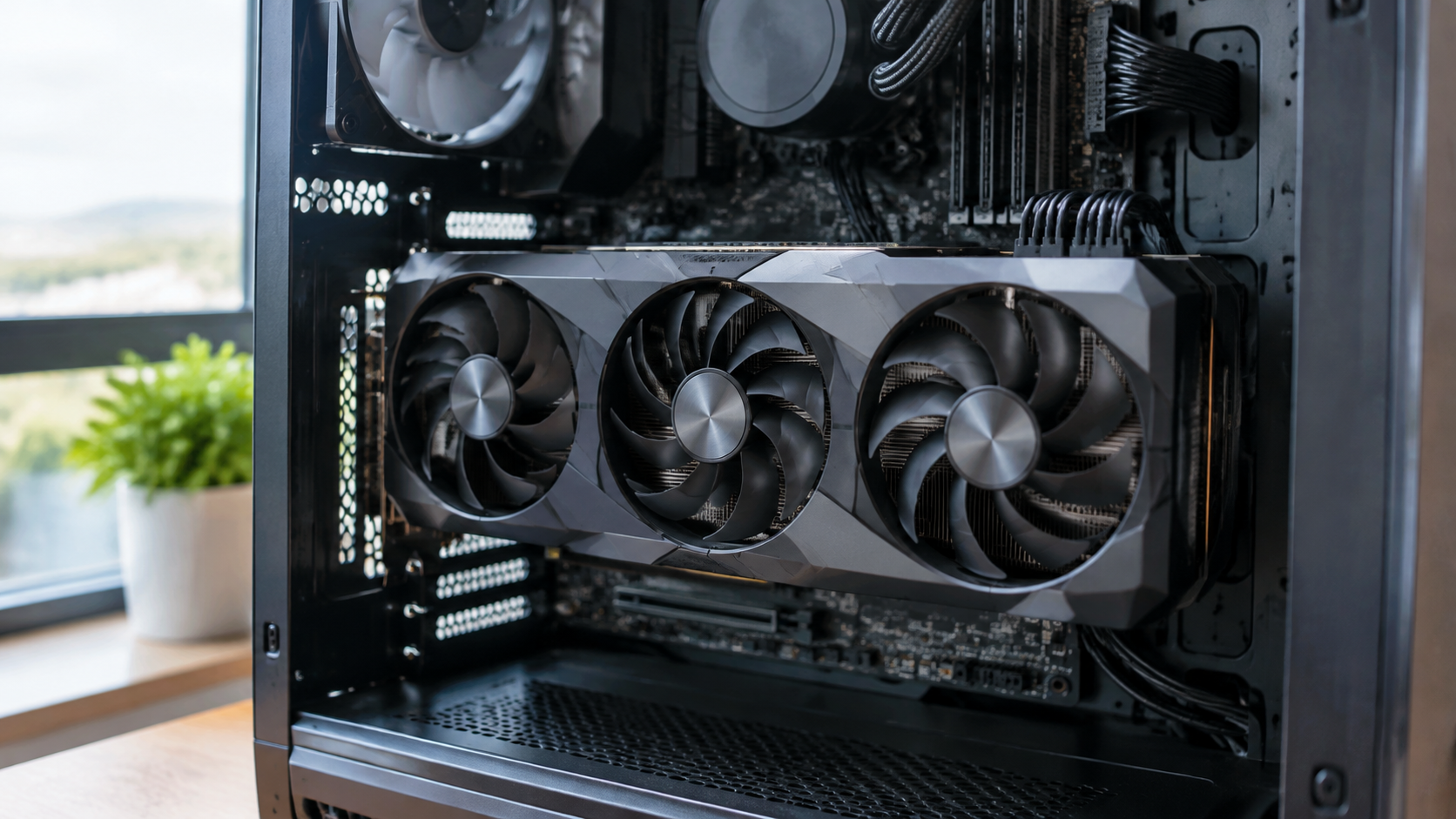
A recent discussion on the r/LocalLLaMA subreddit asked a straightforward question: is it possible to run a 27-billion parameter FP8 model on a single RTX 5090? The RTX 5090 features 32GB of VRAM. A 27B model using 8-bit floating point (FP8) precision requires roughly 27GB just to load the weights. That leaves very little room for the key-value (KV) cache, which stores the context window during generation. However, by carefully configuring vLLM, you can fit this model onto a single card. This tutorial walks through the steps required to load and serve a 27B FP8 checkpoint.
What you need
Before starting, confirm you have the following hardware and software ready:
- An NVIDIA RTX 5090 GPU with 32GB of VRAM.
- A 27B model checkpoint explicitly quantized to FP8.
- vLLM installed and configured according to the official documentation.
You should review the official FP8 Quantization documentation provided by the project to understand supported checkpoint formats. As noted in the vLLM FP8 documentation, serving models with FP8 quantized weights and activations requires specific configuration parameters and compatible checkpoint structures.

How to use vLLM for 27B FP8 inference
Follow these steps to configure the engine.
- Install or update the engine. Ensure you are running a version that supports FP8 quantization. Check the official installation instructions to confirm whether you need to build from source for RTX 5090 compatibility.
- Verify your checkpoint format. The FP8 documentation specifies that the engine supports loading models with FP8 quantized weights and activations. Your model repository must contain the correct configuration files indicating the quantization method. If you are downloading a community checkpoint, verify that it was exported using a supported quantization workflow rather than an experimental script.
- Launch the server and monitor VRAM. Start the API server using your configured arguments. Open a second terminal and run
nvidia-smi -l 1to watch memory usage in real time. The memory should climb steadily as weights load, plateau, and then leave a small margin for the KV cache. If it spikes and crashes during the loading phase, your checkpoint may contain unquantized tensors.
For any additional command-line arguments or environment variables not covered here, check the official vLLM help documentation.
Where this goes wrong
A frequent issue involves unsupported checkpoint formats. The FP8 documentation outlines specific requirements for how weights and activations must be structured. If a checkpoint was quantized using a third-party tool that outputs non-standard scaling factors, the engine may fail to map the tensors correctly.
Finally, dynamic quantization on startup will fail. You must provide pre-quantized weights.
Running a 27B FP8 model on a single RTX 5090 using vLLM is tight, but it is achievable if you respect the physical limits of the hardware and configure every parameter deliberately.