
Tutorials · October 30, 2026
How to use llama.cpp LoRA fine-tuning
llama.cpp LoRA fine-tuning is the task this tutorial walks through. Learn how to use llama.cpp to apply or merge a trained LoRA adapter with a base model, enabling a lightweight assistant to run offline on a standard laptop.
This tutorial shows how to use llama.cpp LoRA fine-tuning for a task teachers are currently trying to get working.
Teachers who want an AI assistant in the classroom often hit a wall: cloud services require internet access and raise student privacy concerns. However, recent discussions on r/LocalLLaMA highlight a practical workaround. By using llama.cpp LoRA inference, you can take a small base model and apply a tiny adapter—sometimes as small as 66 MB—to change its behavior for specific tasks like tool use. This approach lets you post-train a model once and run it entirely offline on a standard laptop.
The core idea is separating the heavy base model from the lightweight behavioral changes. Instead of downloading a massive custom model, you download a standard base model and a small LoRA (Low-Rank Adaptation) file. The llama.cpp project provides the tools to combine them at runtime or merge them permanently. For educators building local tools, exploring workflows like those in Learning Copilot can provide further context on integrating these models into daily teaching routines.
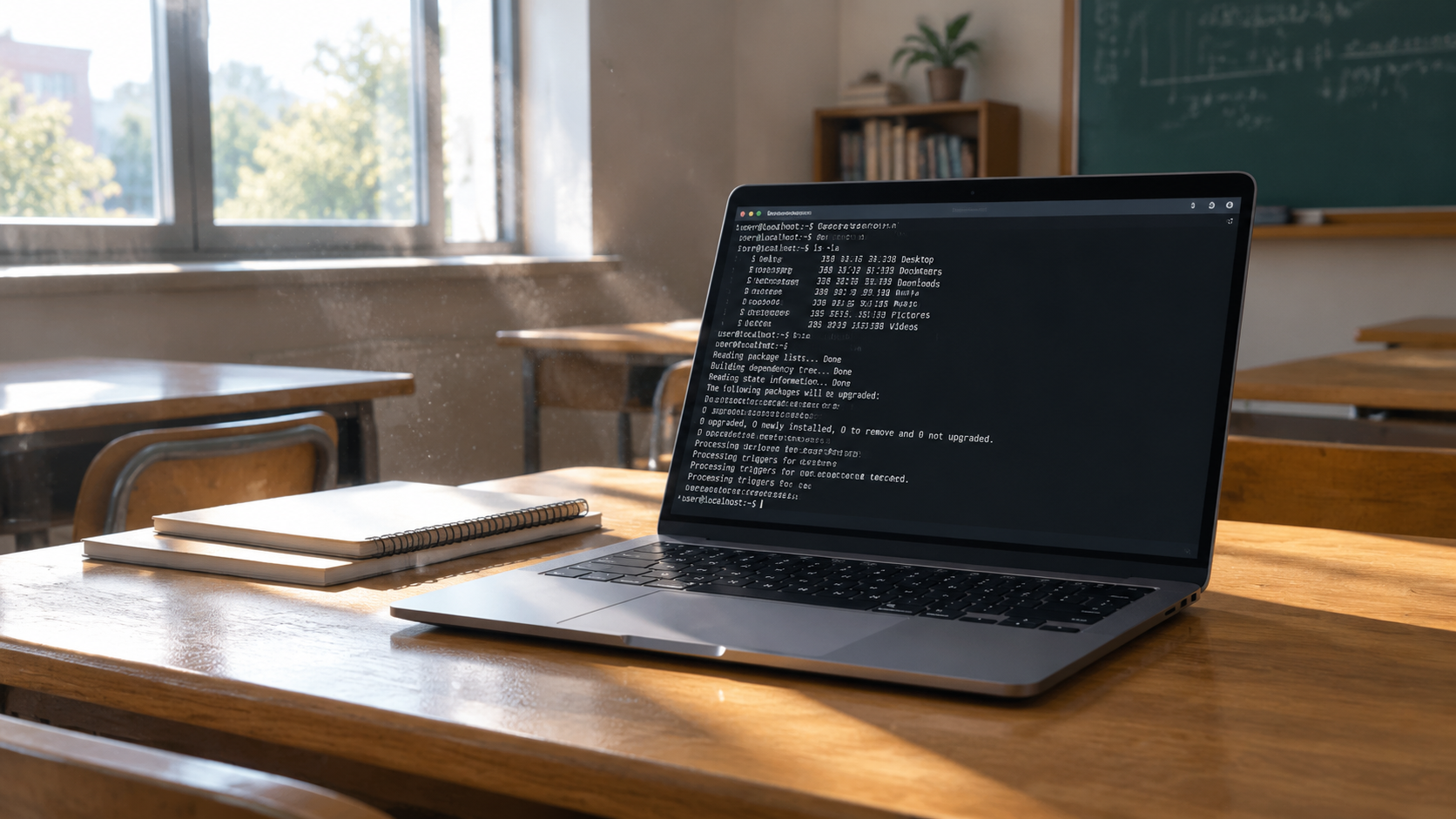
What you need: llama.cpp LoRA fine-tuning
Before starting llama.cpp LoRA inference, gather the following components:
- A compiled version of llama.cpp: You need the main inference binary and the
llama-export-loratool built from the llama.cpp repository. - A base GGUF model: A base model file. For example, a 4-billion parameter model like Qwen3-4B works well.
- A trained LoRA adapter: A
.gguffile containing your post-trained weights. As demonstrated by open-source projects like Tadpole, these adapters can be incredibly small (e.g., 66 MB) while significantly boosting performance on specific tasks (improving validation metrics from 0.51 to 0.83). - A standard laptop: A modern Mac or Windows/Linux machine capable of running the resulting lightweight model offline.
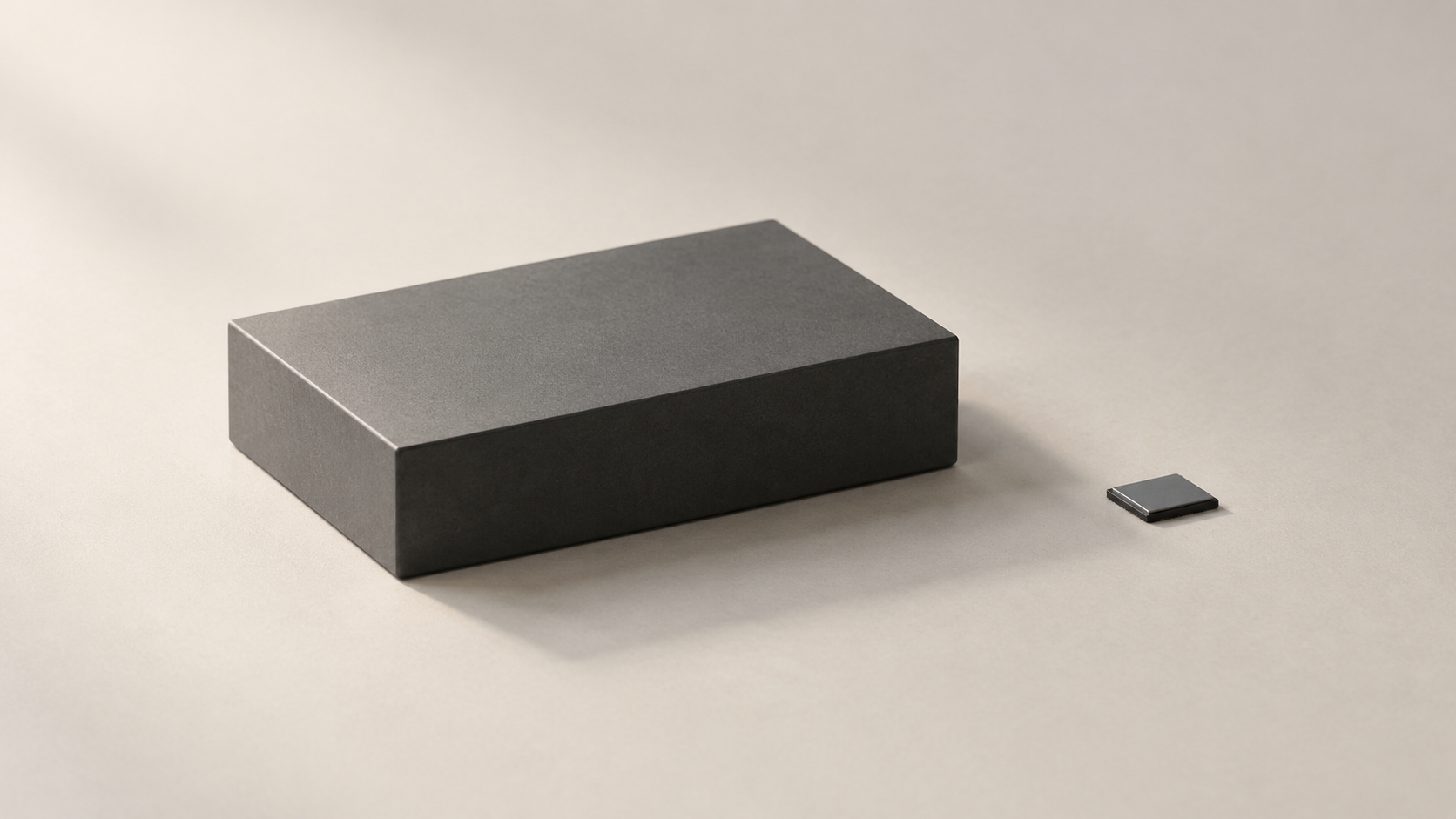
How to apply a llama.cpp LoRA adapter
The llama.cpp README.md documents two primary ways to use a trained adapter with a base model. You can either apply it dynamically every time you run the model, or you can bake it into the base model permanently. Follow these steps based on the official documentation.
- Download your base model and adapter. Obtain the base GGUF file and your trained LoRA adapter file.
- Verify your llama.cpp build. Ensure you have compiled llama.cpp successfully. Confirm in the official llama.cpp help documentation that both the main inference executable and the
llama-export-lorautility are present in your build directory. - Apply the LoRA at inference time (Dynamic Method). To run the model with the adapter without altering the original base file, use the
--loraflag when launching the inference binary. Pass the path to your adapter file immediately after this flag. The engine will load the base model and apply the adapter weights in memory. This is useful if you want to swap between different classroom personas or subjects by simply changing the adapter file. - Merge the LoRA permanently (Static Method). If you prefer a single file to distribute to other teachers or run without extra flags, use the
llama-export-loratool. According to the llama.cpp README.md, this utility takes your base GGUF model and your LoRA adapter and outputs a new, merged GGUF file. - Run the merged model. Once
llama-export-lorafinishes, you can run the newly created GGUF file using the standard llama.cpp inference command. It will behave exactly as the base model did with the dynamic--loraflag applied, but requires no additional files. - Test the output. Send a prompt relevant to your training data to verify the adapter is working. If you trained the model to format lesson plans or use specific educational tools, check that the output matches your validation metrics.
Where this goes wrong
Even with a small adapter, things can break during llama.cpp LoRA deployment. Here are common pitfalls:
- Architecture mismatch: The LoRA adapter must be trained for the exact base model architecture. An adapter trained for Qwen3-4B will not work on Llama-3-8B. Always verify the base model used during the adapter's creation.
- Missing flags or paths: When using the dynamic method, forgetting the
--loraflag or providing an incorrect file path means the model will run, but it will just be the unmodified base model. You might wonder why your accuracy didn't improve, only to realize the adapter was never loaded. - Tool compilation errors: If
llama-export-lorafails to compile, check your build environment. The llama.cpp README.md outlines the necessary dependencies for compiling all included utilities. - Unsupported CLI flags: If you need to pass specific generation parameters (such as prompt text, token limits, or output files) to
llama-cliorllama-export-lora, check the official llama.cpp help documentation, as available flags depend on your build.
Worked Example: Offline Classroom Assistant
Suppose you downloaded a Qwen3-4B GGUF base model (qwen3-4b.gguf) and a 66 MB LoRA adapter (classroom-helper-lora.gguf) trained to answer middle school science questions.
To test it dynamically, open your terminal and run the llama.cpp inference binary with the --lora flag:
./llama-cli --lora ./adapters/classroom-helper-lora.ggufCheck the official llama.cpp help documentation for the correct flags to specify your base model file and prompt text. If the output correctly uses the vocabulary and structure defined in your adapter, you can merge it for easier sharing with colleagues using the llama-export-lora tool:
./llama-export-loraConsult the official llama.cpp help documentation for the specific arguments required by llama-export-lora to define your base model, adapter, and output file paths. Once merged, any teacher can run the resulting GGUF file on their laptop without needing the separate adapter file or remembering the --lora flag. This workflow keeps student data completely offline while leveraging the power of targeted post-training.