
Tutorials · October 21, 2026
How to Run the Sage-A1.5 Qwen Finetune Locally
Learn how to deploy the Sage-A1.5 Qwen finetune locally on 16GB VRAM using quantization and layer offloading as documented by official sources.
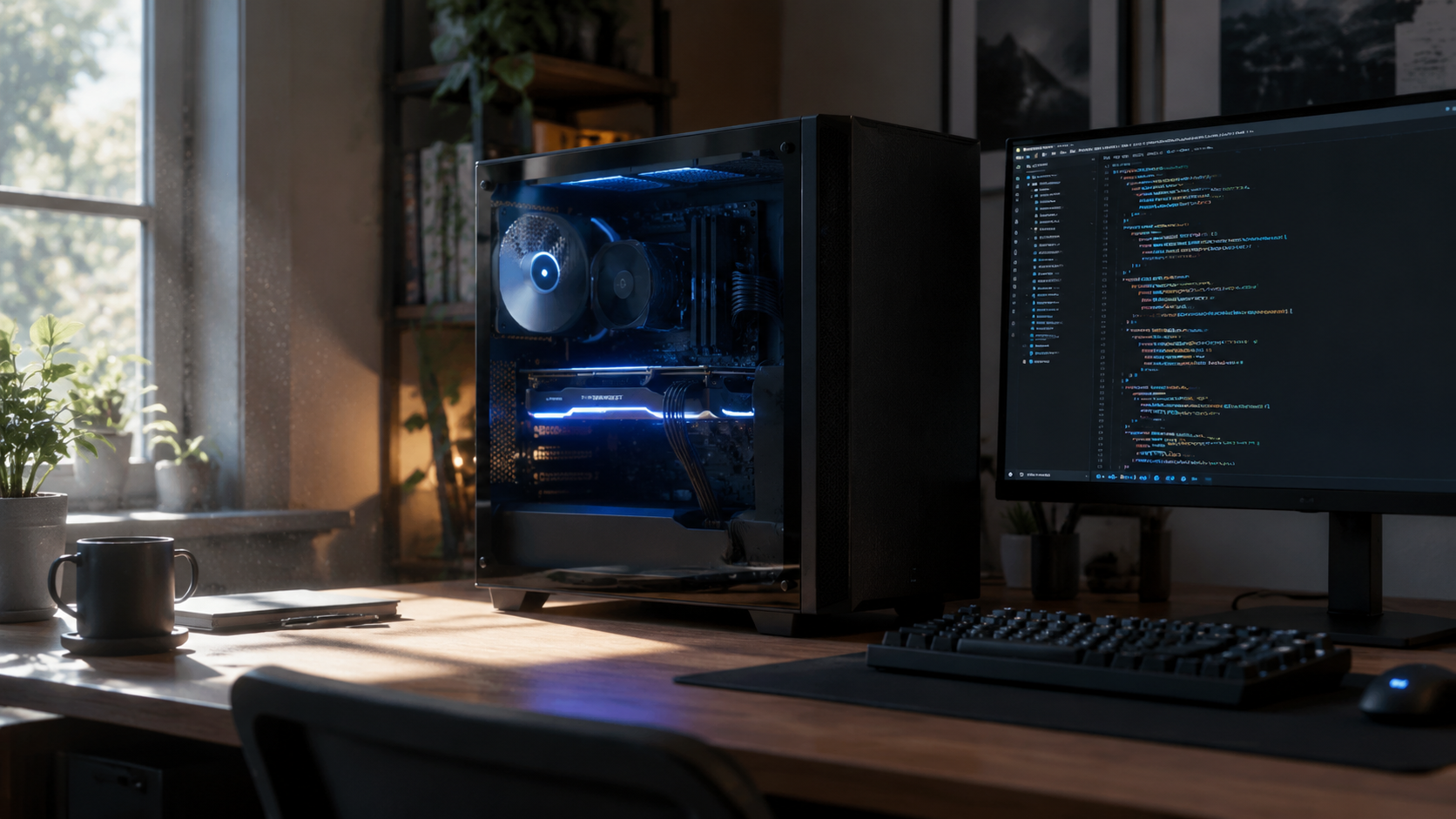
High school science teachers and local AI enthusiasts are trying to run large models on consumer hardware without relying on cloud APIs. A recent r/LocalLLaMA thread discussing the InternScience/Sage-A1.5 [Finetune of Qwen 3.6 35b-a3b] highlights a common practical problem: how do you fit a 35-billion parameter model into 16GB of VRAM? The answer lies in Mixture-of-Experts (MoE) architecture and quantization. Because this specific Sage-A1.5 Qwen finetune only activates about 3 billion parameters per forward pass, it is an ideal candidate for local deployment. This tutorial walks you through setting up this model locally.
What you need
Before starting, confirm your system meets these requirements:
- GPU: An NVIDIA, AMD, or Apple Silicon GPU with at least 16GB of VRAM (e.g., RTX 4080, RTX 4070 Ti Super, or Mac M-series with 16GB+ unified memory).
- Software: A supported inference framework. Check the official Qwen documentation to confirm which inference frameworks currently support Qwen MoE architectures and how to load quantized weights to reduce memory footprint.
- Model Weights: Download the model from the Hugging Face repository
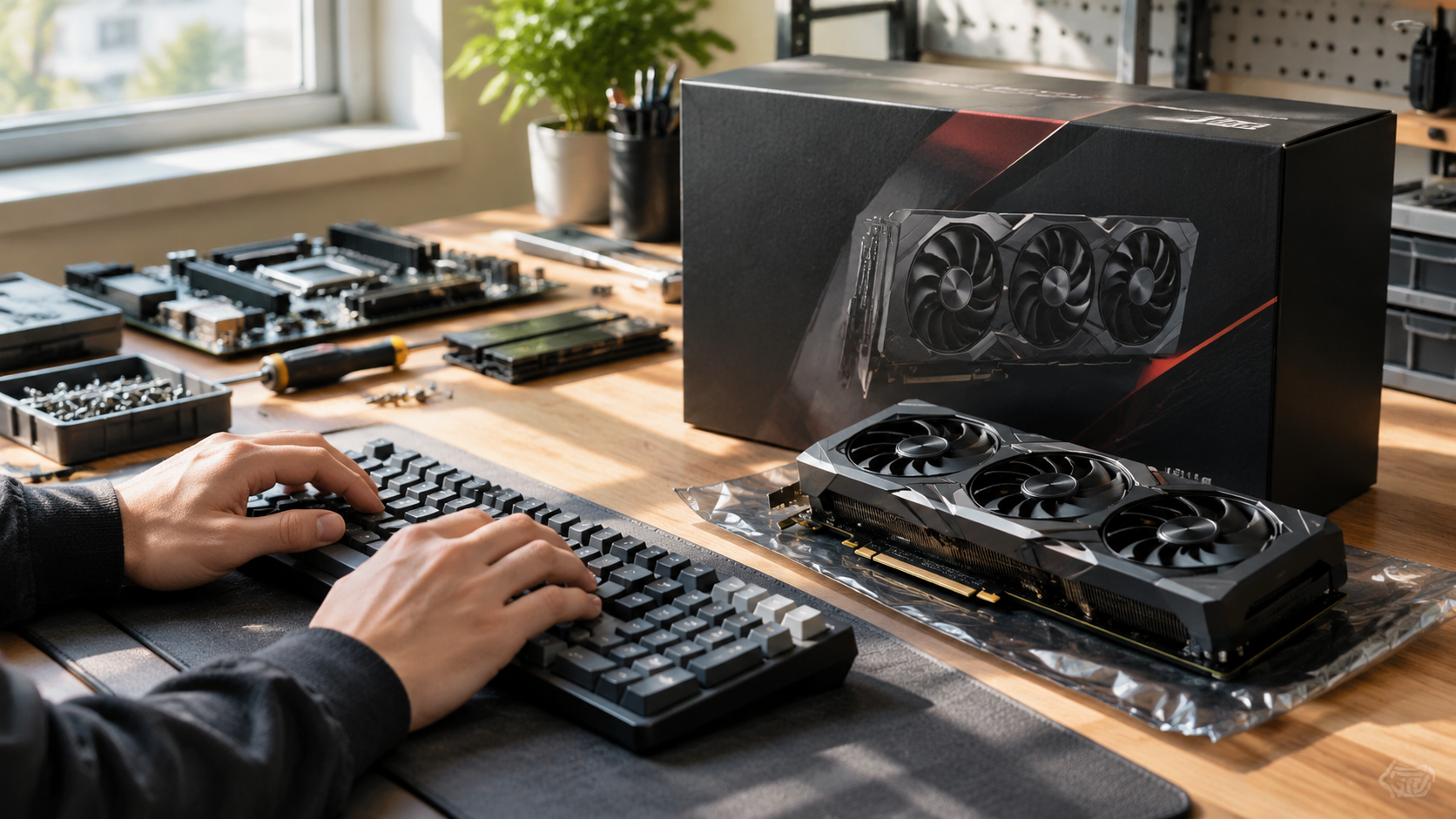
InternScience/Sage-A1.5. Use quantization methods documented in the Hugging Face Transformers Quantization Documentation (such as 4-bit or 8-bit via bitsandbytes, AWQ, or GPTQ) to fit the model within your VRAM limit. - System RAM: At least 16GB of system RAM to handle CPU offloading if VRAM fills up during long conversations.
How to Sage-A1.5 Qwen finetune
The following steps outline how to load and run the quantized model locally. These steps rely on standard practices documented in the Qwen documentation and the Hugging Face Transformers Quantization Documentation for constrained VRAM environments.
- Download the model files. Navigate to the
InternScience/Sage-A1.5repository on Hugging Face. Download the model weights. To reduce the memory footprint, apply quantization at load time using methods like bitsandbytes, AWQ, or GPTQ as detailed in the Hugging Face Transformers Quantization Documentation. - Install your inference engine. Ensure your environment includes a supported inference framework configured correctly to parse MoE routing mechanisms, as noted in the Qwen documentation.
- Configure layer offloading. To stay within 16GB VRAM, you must control how many neural network layers are sent to the GPU. The Hugging Face Transformers Quantization Documentation explains that offloading remaining layers to the CPU or disk is necessary when VRAM is constrained. For specific CLI flags or GUI controls not covered by the Transformers library's Python-based offloading, check the official help of your chosen inference framework.
- Set the context window. Context consumes VRAM. Set your context length to a reasonable size. Larger contexts will push active memory usage higher, potentially forcing more layers back to system RAM. Check your inference framework's official help for instructions on configuring context length.
- Load the model and apply the chat template. Launch the server or interactive mode. You must ensure the inference engine applies the correct prompt template expected by the base Qwen architecture. Consult the official Qwen documentation to verify the exact chat template syntax required for Qwen-based MoE models so the model responds correctly rather than outputting raw text.
- Test generation speed. Send a test prompt. Monitor your VRAM usage using tools like
nvidia-smior your OS task manager. If VRAM usage peaks near your limit, adjust your offloading settings or reduce the context window before bringing students into the session.
Where this goes wrong
Deploying a 35B MoE model on 16GB VRAM introduces specific failure points.
VRAM Spikes During Routing: Even though only ~3B parameters are active per token, the routing mechanism still needs to evaluate all experts. If your inference engine does not properly optimize MoE memory management, VRAM will spike. Always keep a few gigabytes of VRAM free as a buffer.
Context Saturation: As a session grows longer, the KV cache expands. A session that starts comfortably in 16GB might crash after many turns. You may need to periodically clear the context or rely on CPU/disk offloading, which the Hugging Face Transformers Quantization Documentation details as a fallback for constrained environments.
Wrong Chat Template: If the model outputs repetitive gibberish or ignores instructions, the chat template is likely incorrect. Double-check the formatting rules in the Qwen documentation.
Example Prompt
Here is a worked example you can copy to test the model once deployed. Paste this into your local chat interface:
You are a high school biology tutor. Explain cellular respiration to a 10th-grade student. Break it down into three main stages. After explaining, ask me one multiple-choice question to check my understanding. Do not give me the answer until I respond.By carefully managing your GPU layers and applying supported quantization, you can run this model entirely offline, ensuring student data never leaves your local machine.
Sources
- [Reddit r/LocalLLaMA: InternScience/Sage-A1.5 [Finetune of Qwen 3.6 35b-a3b]](https://huggingface.co/InternScience/Sage-A1.5)
- Qwen Documentation
- Hugging Face Transformers Quantization Documentation