
Tutorials · November 14, 2026
How to Remove ChatGPT Ads with Tampermonkey
Learn how to use a Tampermonkey userscript to hide injected ads from ChatGPT responses.
A recent discussion on Reddit r/ChatGPT highlighted this problem, where people are asking how to handle sponsored content appended to AI-generated answers. To solve this, you can use Tampermonkey, a browser extension that runs custom JavaScript on specific websites. By installing a targeted userscript, you can automatically hide these ad elements. This tutorial walks you through setting up a script that removes injected ads from ChatGPT responses.
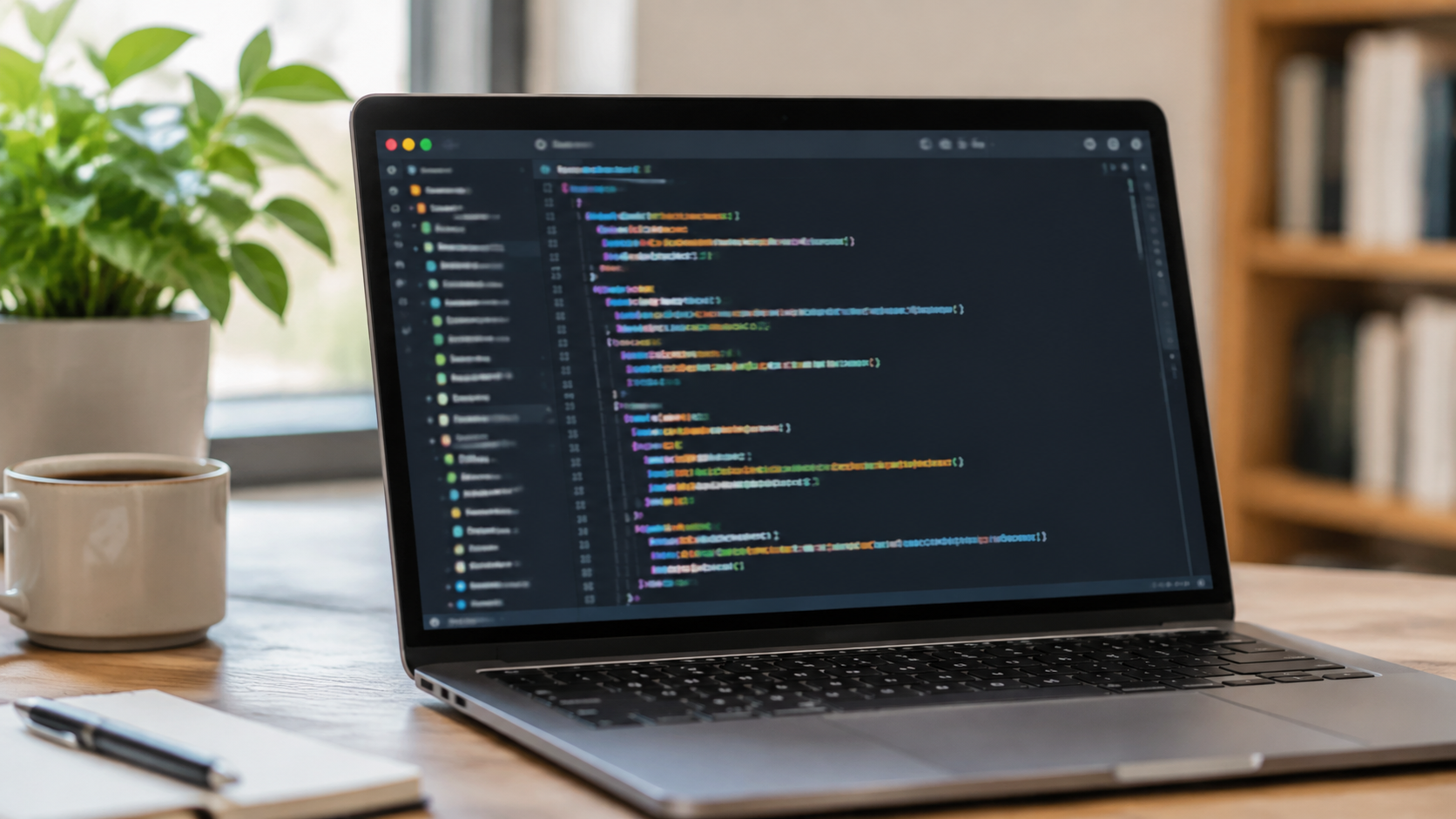
What you need
Before you begin, make sure you have the following ready:
- A web browser that supports extensions.
- The Tampermonkey extension installed from your browser's official extension store. You can find installation instructions in the Tampermonkey Documentation - Getting Started guide.
- Access to
chatgpt.comorchat.openai.comwhere you will be running the script.

How to Tampermonkey
Follow these steps to configure your browser to strip out unwanted promotional content. Every step below is based on standard practices outlined in the Tampermonkey Documentation - Getting Started and community sharing platforms like Greasy Fork - Publishing and Sharing Userscripts.
- Install the extension. Open your browser's extension store, search for Tampermonkey, and add it to your browser. Once installed, you will see its icon in your browser toolbar.
- Open the dashboard. Click the extension icon in your toolbar and select the option to open the dashboard. The Tampermonkey Documentation - Getting Started explains that the dashboard is your central hub for managing all active scripts.
- Create a new userscript. Inside the dashboard, click the button to add a new script. This opens a built-in text editor where you can write or paste JavaScript.
- Configure the metadata block. At the top of the editor, you will see a block of comments starting with
// ==UserScript==. According to the Tampermonkey Documentation - Getting Started, you must configure@matchdirectives here to target specific URLs. For this task, set your match rules tohttps://chatgpt.com/andhttps://chat.openai.com/so the script only runs on ChatGPT pages. - Write or paste the DOM manipulation code. Below the metadata block, write the JavaScript needed to identify and delete injected ad elements. The Tampermonkey Documentation - Getting Started notes that you should use DOM manipulation methods such as
querySelectorandelement.remove()to locate the specific HTML nodes containing the ads and remove them from the page. Check the official help documentation for details on specific selectors. - Alternatively, install a community script. Instead of writing the code yourself, you can visit Greasy Fork - Publishing and Sharing Userscripts. Search for existing community-written userscripts designed to modify page content or remove ads. When you find a suitable script, Greasy Fork allows you to install it into Tampermonkey with one click.
- Manage and edit your scripts. Whether you wrote the script yourself or installed it from Greasy Fork, you can manage or edit installed scripts directly from the dashboard. The Greasy Fork documentation explains how to customize which page elements are removed during browsing, allowing you to tweak the script if the layout of the chat interface changes.
- Save and test. Save your script in the editor. Navigate to ChatGPT, generate a response, and verify that the injected ads no longer appear.
Where this goes wrong
Userscripts rely on the structure of the webpage remaining consistent. If the platform updates its layout or changes the CSS classes used for advertisements, your script might stop working or accidentally remove legitimate parts of the conversation. Always review the script's logic after major platform updates.
A recent r/ChatGPT thread where people are asking how to handle this recorded 2 comments when read. Check the official help resources for further troubleshooting.
Worked example: Basic setup
Here is a simplified version of the logic you would paste into the Tampermonkey editor, based on the DOM manipulation methods described in the Tampermonkey Documentation - Getting Started:
// ==UserScript==
// @name         Ad Remover
// @namespace    local.adremover
// @version      1.0
// @description  Hide injected ads
// @match        https://chatgpt.com/*
// @match        https://chat.openai.com/*
// @run-at       document-idle
// @grant        none
// ==/UserScript==

(function() {
    'use strict';

    function removeAds() {
        // Use querySelector to find the specific ad container
        // Note: You must inspect the live page to confirm the exact selector
        const adElements = document.querySelectorAll('YOUR_SELECTOR_HERE');

        adElements.forEach(element => {
            element.remove();
        });
    }

    removeAds();
})();
In this example, the script uses querySelectorAll to find elements matching a specific attribute, and then calls element.remove() to delete them. Before using the script, inspect the actual page using your browser's developer tools to confirm the exact selector targeting the ad containers, as these attributes change frequently. Once verified, save the script in Tampermonkey.